> ## Documentation Index
> Fetch the complete documentation index at: https://docs.webdraw.com/llms.txt
> Use this file to discover all available pages before exploring further.
# Quickstart
> Generate AI Apps with Webdraw
We use our infinite canvas as the medium to communicate your ideas.
Feel free to move around the canvas, zoom in, zoom out!
### Step 1: In the action bar at the left of the screen, select the Text action.
Write the idea of your application.
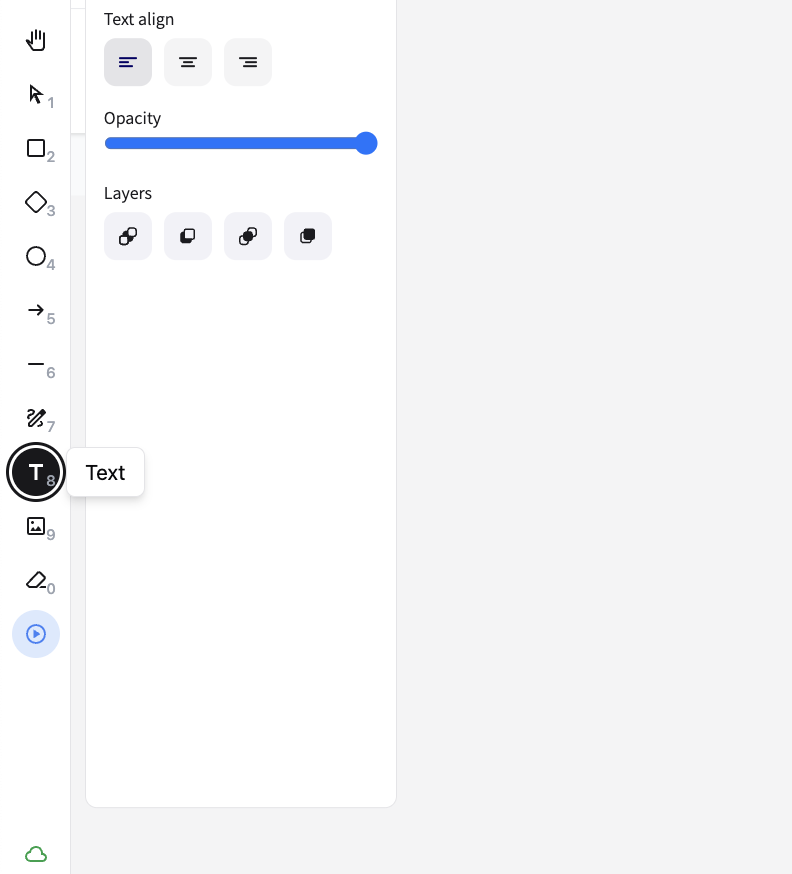 In our case we are going to ask for a Calculator
### Step 2: Generate your App
Press the App Button at the top of the screen
In our case we are going to ask for a Calculator
### Step 2: Generate your App
Press the App Button at the top of the screen
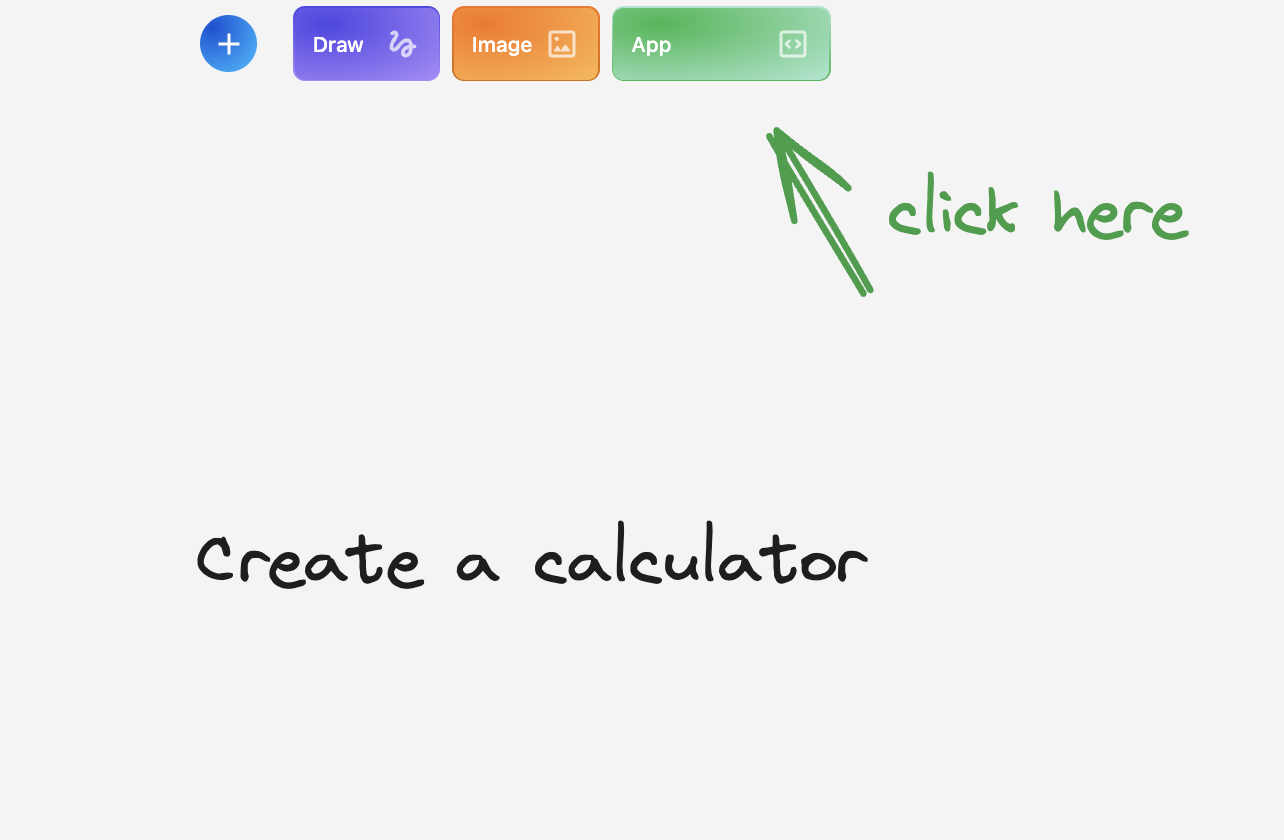 Wait for a few seconds...
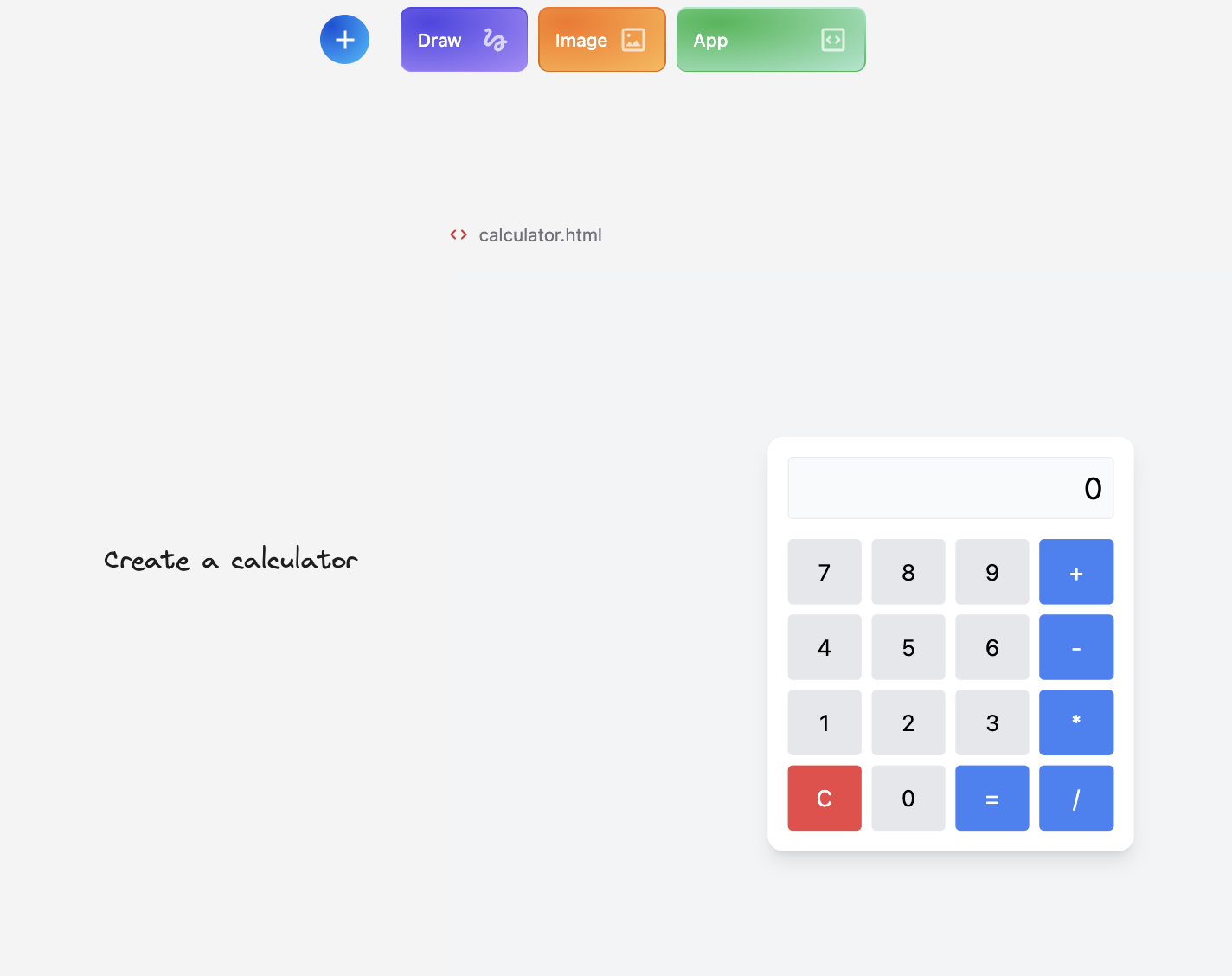 ### Step 3 (Optional): Publish your App
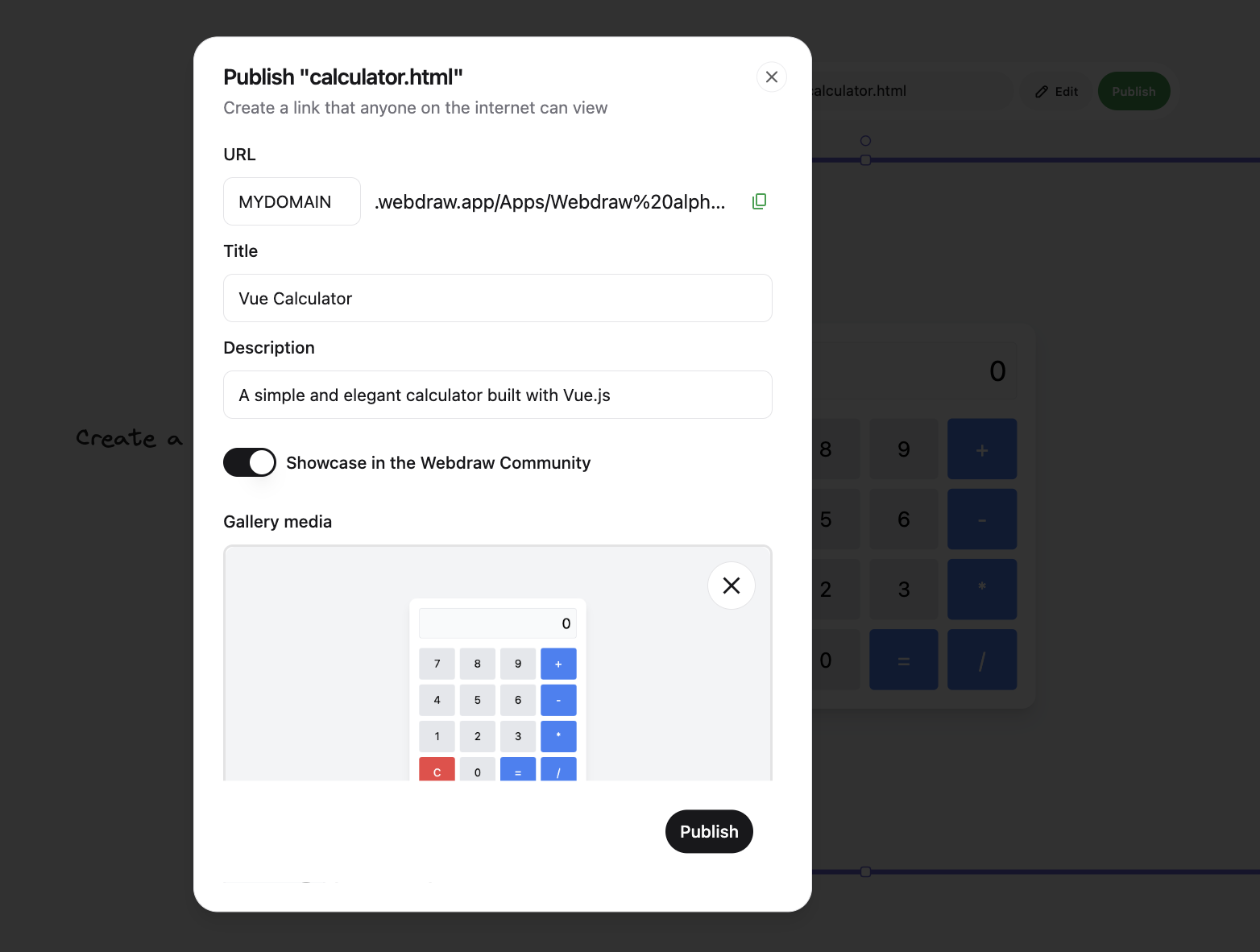
Select the html and click on Publish
### Step 3 (Optional): Publish your App
Select the html and click on Publish
 See the details of how this is going to be published