> ## Documentation Index
> Fetch the complete documentation index at: https://docs.webdraw.com/llms.txt
> Use this file to discover all available pages before exploring further.
# Login with Google
> Learn how to add login with Google using Firebase to your Webdraw App
Before you start, make sure you have connected Firebase to your Webdraw App.
If you haven't, you can do so [here](/integrations/firebase).
### Step 1: Ask Webdraw to add the Login with Google button to your app
Use your Firebase prompt and ask Webdraw to add a "Login with Google" button to your app.
Here is an example prompt you could use:
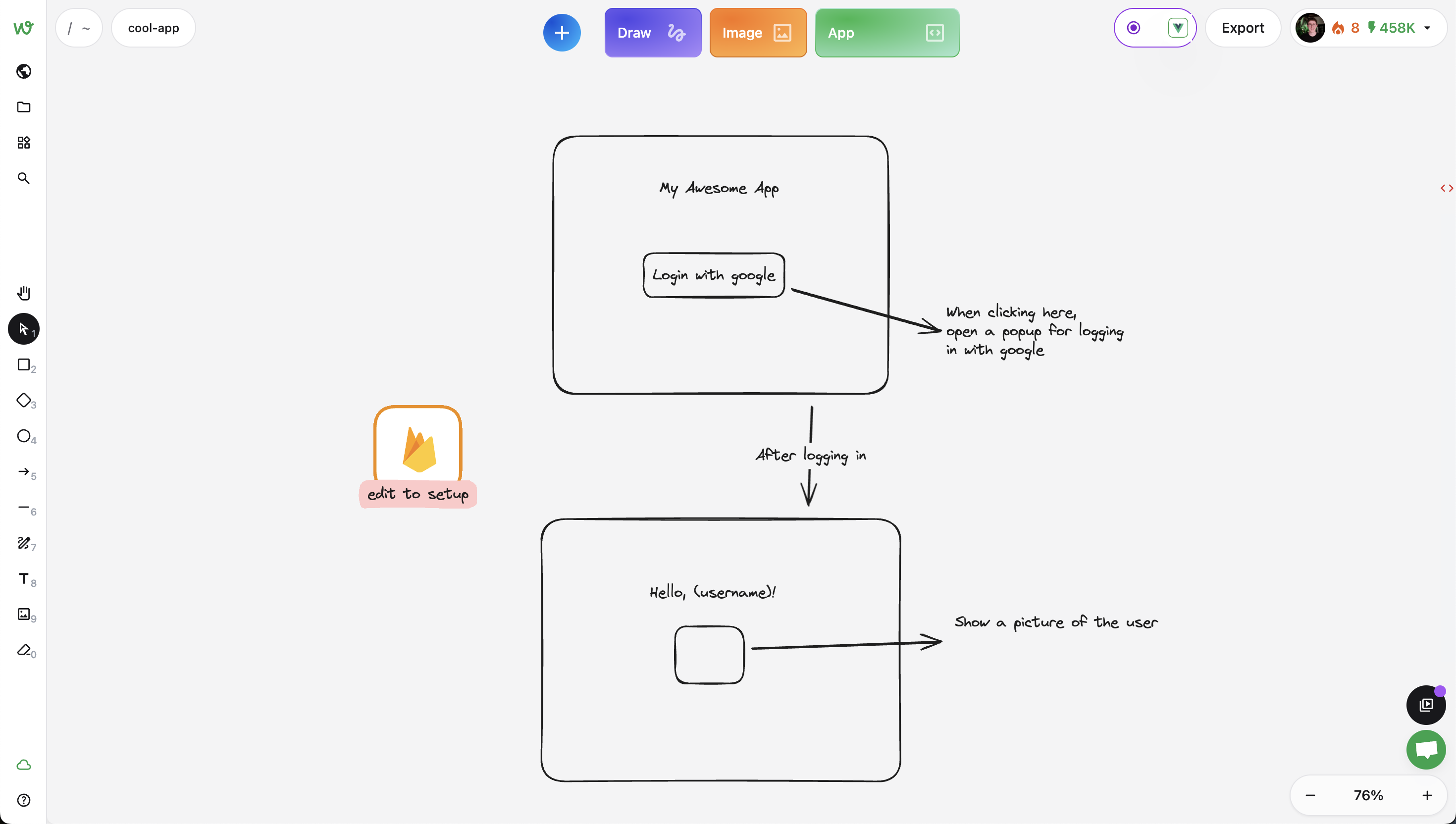 After clicking the `App` button to generate the app, i got this already working app:
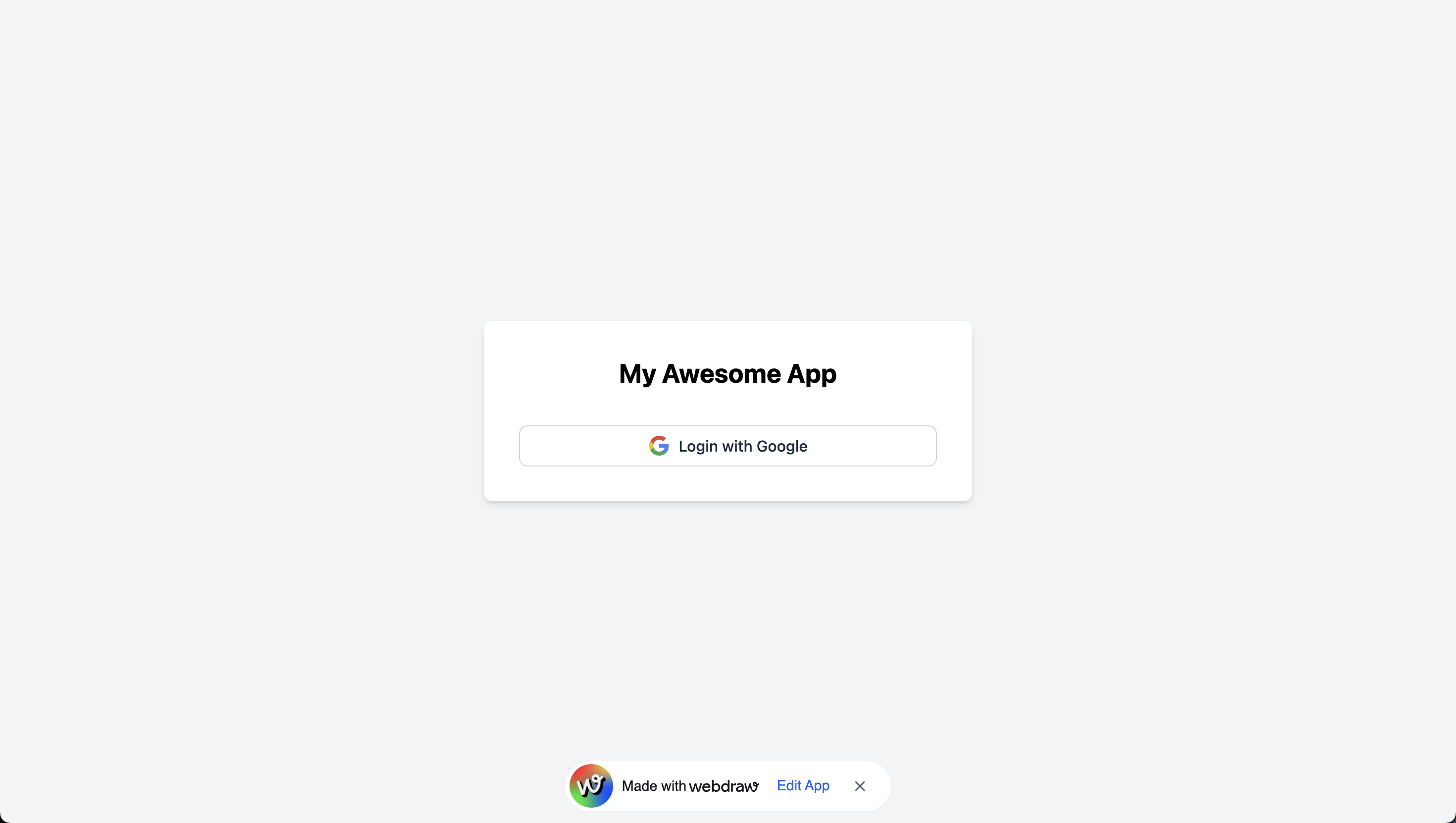
 You can see the created app [here](https://camudo.webdraw.app/firebase-login-example.html).
If this is the first time you are using Firebase, you probably need to configure
your Firebase project to allow logging in from your App, so look into Step 2.
### Step 2 (optional): Ensure your Firebase project configuration allows logging in from your App
To do this, you can go to the *Firebase Console* -> *Build* -> *Authentication*.
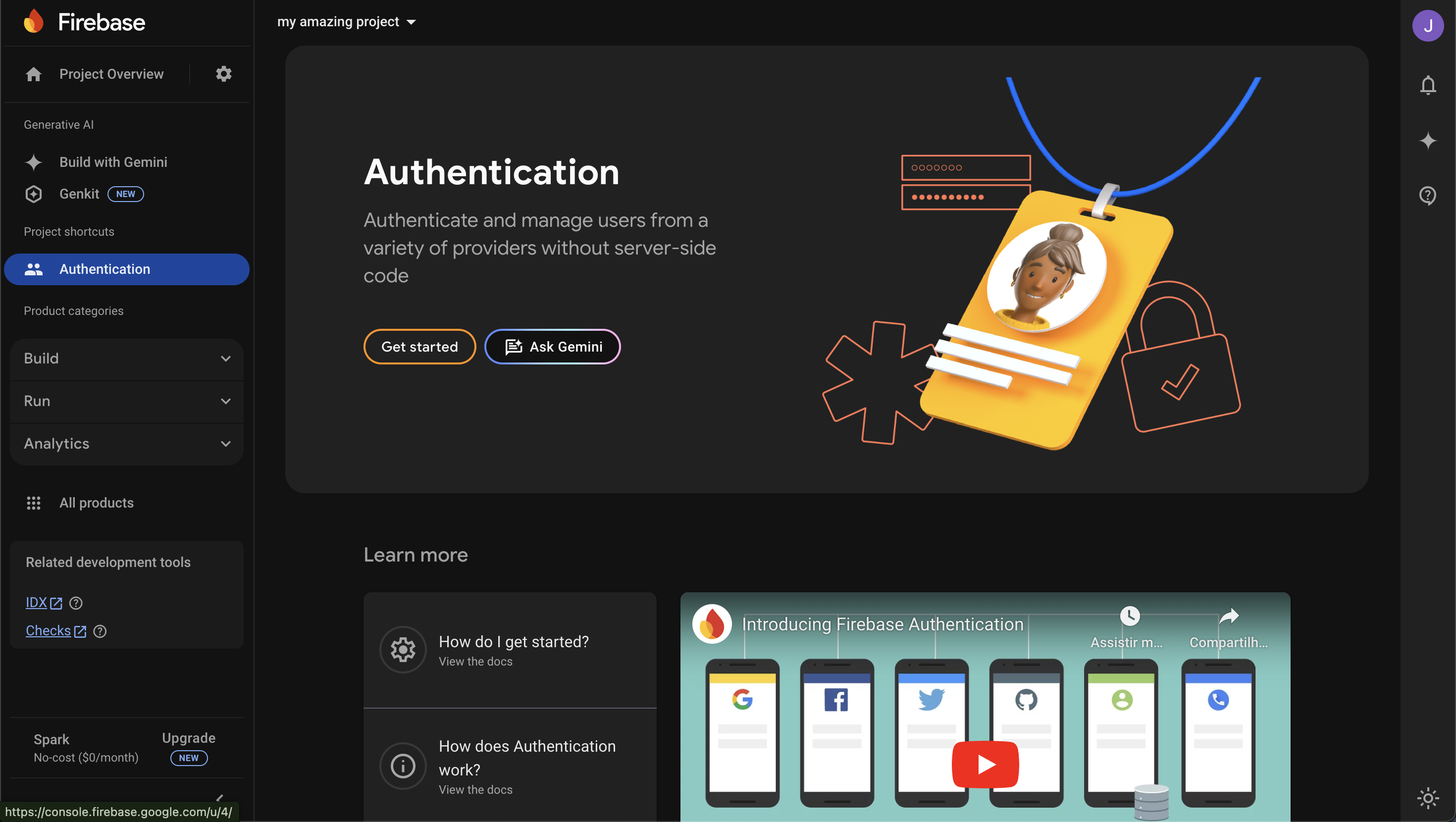
If you have never done this, click on the "Get started" button.
You can see the created app [here](https://camudo.webdraw.app/firebase-login-example.html).
If this is the first time you are using Firebase, you probably need to configure
your Firebase project to allow logging in from your App, so look into Step 2.
### Step 2 (optional): Ensure your Firebase project configuration allows logging in from your App
To do this, you can go to the *Firebase Console* -> *Build* -> *Authentication*.
If you have never done this, click on the "Get started" button.
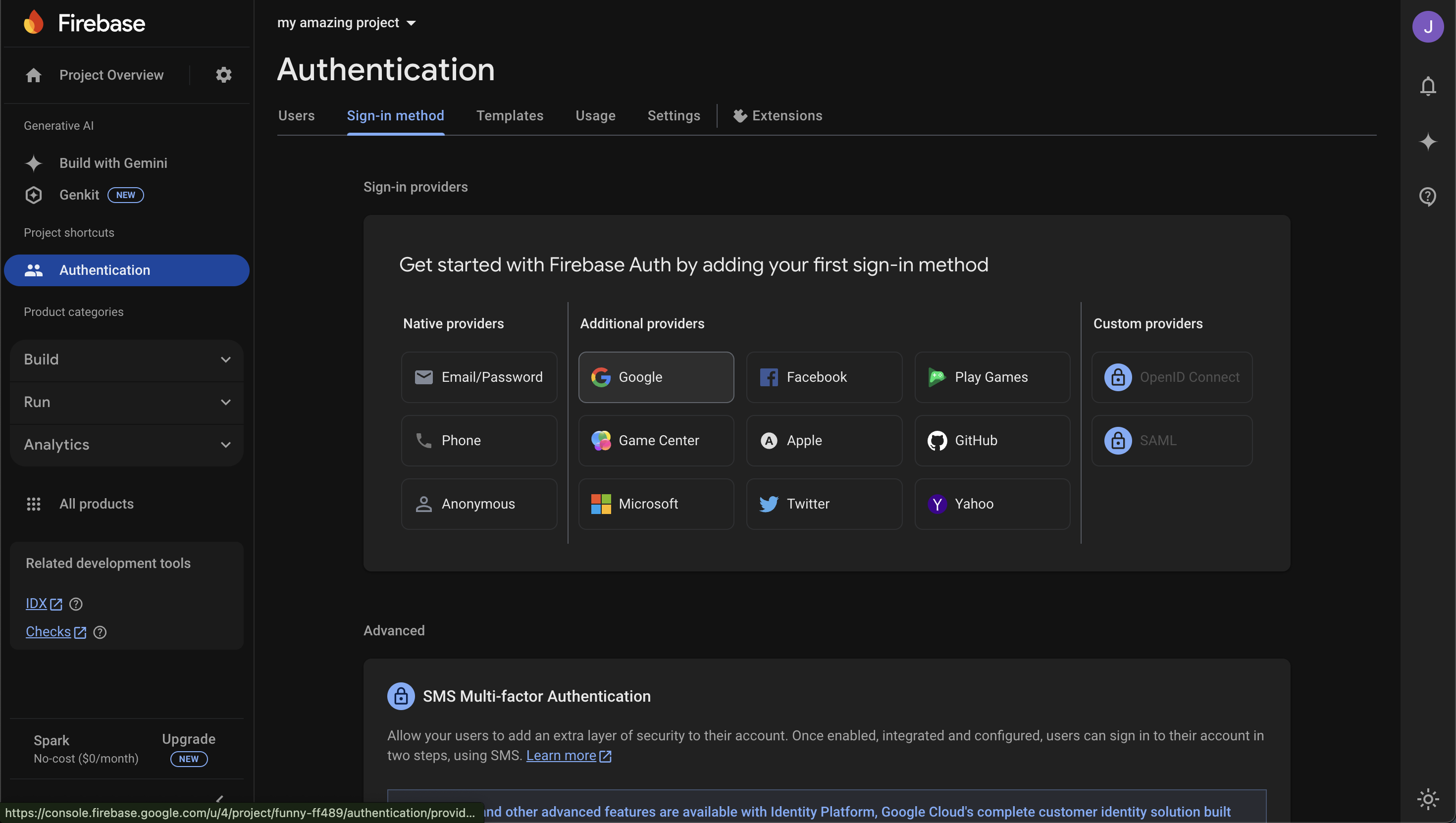
 Then, click on the "Sign-in method" tab and enable the "Google" sign-in method.
 After enabling the Google sign-in method, make sure your App's domain is
listed on the "Authorized domains" section.
Go to the *Firebase Console* -> *Build* -> *Authentication* -> *Settings* -> *Authorized domains*.
If you don't see your `*.webdraw.app` domain listed, click on the "Add domain"
button and add your domain.
Now, your App should be fully configured to Login with Google.
After enabling the Google sign-in method, make sure your App's domain is
listed on the "Authorized domains" section.
Go to the *Firebase Console* -> *Build* -> *Authentication* -> *Settings* -> *Authorized domains*.
If you don't see your `*.webdraw.app` domain listed, click on the "Add domain"
button and add your domain.
Now, your App should be fully configured to Login with Google.